Showing posts with label Mac OS X. Show all posts

Thursday, May 3, 2012

FileMaker Pro Equivalent to SQL Query or View

Have you ever wondered how to create queries or views in FileMaker Pro on Mac?  I have, and it's one of those odd learning curves that come with being used to straight-forward but fairly technical SQL statements that are customary in Oracle, SQL Server, MySQL and even Access.  Searching for the word "join" returns no relevant results in the FileMaker Pro 9 Help files.

Well, for other SQL developers out there, I hope this tutorial will shed some light on how to join two tables and then create a query or a view: FileMaker Pro: Creating a "Query" or "View"

In summary, here are the key takeaways from the tutorial:
  • A SQL join is analogous to a layout in FileMaker Pro with relationships between tables.
  • A SQL query or view is analogous to using Find Mode in FileMaker Pro with a layout.
  • Simple filters can be applied in Find Mode using Symbols and the Omit checkbox.

Let me know what you think of the tutorial!  Personally, I was super excited to figure out how to import two lists from two different databases into FileMaker Pro in order to identify discrepancies between the two lists, like I would've done using Excel or Access.  Why would I use FileMaker Pro instead of Excel on Mac to do this?  Because Excel is unfortunately case-insensitive.

Friday, March 2, 2012

Installing Ruby 1.9.2 on Mac OS X Lion 10.7.3

A few simple steps to get Ruby 1.9.2 up and running on Mac OS X Lion 10.7.3:
  1. Download Xcode from the App Store.
  2. Run Xcode and open the app's Preferences.
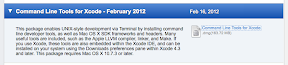
  3. Open the Downloads tab, then download and install Command Line Tools for Xcode.
  4. Download and expand Ruby 1.9.2 (stable) source from the official Ruby website.
  5. Launch the Terminal app.
  6. Change to the directory containing the expanded Ruby source code.
  7. $ ./configure
  8. $ make
  9. $ sudo make install

Then, to use the newly installed version of Ruby (instead of the pre-installed version that came with Lion):
$ export PATH=/usr/local/bin:$PATH

To summarize the results... Before installing Ruby 1.9.2:
$ irb -v
irb 0.9.5(05/04/13)
$ ruby --version
ruby 1.8.7 (2010-01-10 patchlevel 249) [universal-darwin11.0]

After installing Ruby 1.9.2:
$ ruby --version
ruby 1.9.2p290 (2011-07-09 revision 32553) [x86_64-darwin11.3.0]
$ irb -v
irb 0.9.6(09/06/30)

Thank you, Mike Clark, for pointing out that with Lion I now have to download Command Line Tools for Xcode in order to compile stuff.


Thank you, Ubuntu community, for giving instructions on how to compile programs from source code.

... And finally, with no further ado, I present: the rant behind this post!

Programming an application is supposed to be difficult and require significant thinking. Installing the compiler or interpreter or whatever package is necessary to run the code should be easy.

Maybe it's just me... but why in the world did it take me 2 hours and so much frustration to get Ruby setup on my Mac? Ruby's website says, "Compiling from Source is the standard way that software has been delivered for many, many years. This will be most familiar to the largest number of software developers." Thanks. For assuming incorrectly that I know how to "compile from source" and providing zero instructions for how to do that on my OS.


Thursday, September 8, 2011

Apex Data Loader for Mac, Linux and Unix

Salesforce had the foresight to code the Apex Data Loader (ADL) in Java, which is a cross-platform tool that should work on any computer that has a JRE installed. This implies that the ADL should work on all OS's, not just on Windows.

Force 201 made a great post about running ADL with a GUI, but I just wanted to know how to run the ADL in batch mode from a command line (so that I can script the process).

It turns out to be as easy as the following:
  1. Download and install the Apex Data Loader on a Windows computer.
  2. Copy the files in "%ProgramFiles%\salesforce.com\Apex Data Loader apiVersion" to the desired directory on the target computer or server. Use binary mode for data transfer when applicable.
  3. Setup the batch mode configuration files as you normally would. This generally includes config.properties and process-conf.xml.
  4. Look at "\bin\encrypt.bat" to figure out how to create an encrypted password if you need one.
  5. Look at the last few lines of "\bin\process.bat" in the folder to figure out what syntax to use to run ADL via the command line.

For example, with ADL 22.0 on Linux, I can change to the base directory containing all of the ADL files and run this command:
java -cp DataLoader.jar -Dsalesforce.config.dir=conf com.salesforce.dataloader.process.ProcessRunner process.name=classMeetingExtractProcess

classMeetingExtractProcess is the id of one of my beans defined in process-conf.xml.

Saturday, June 5, 2010

Terminal Setting to Facilitate VI in Mac OS X SSH Session

I was constantly annoyed by the fact that when I connected via SSH to a remote Unix server and tried to run VI or VIM, I would encounter the following message:

ex: 0602-108 xterm-color is not a recognized terminal type.
[Press return to continue]


After I acknowledge the error, VI would be essentially unusable.

Luckily for me, I was able to find a post from back in 2004 about the same issue on earlier versions of Mac.

"Setting terminal to be recognized for SSH."
http://forums.macosxhints.com/showthread.php?t=19246


While the suggestion they had for creating the ~/.ssh/environment file did not work for me, setting TERM=vt100 before I ran ssh in Terminal did allow me to use VI properly in the SSH session.